Friday, 23 December 2016

Host Named site collection is not opening

Hosted Site Collection issue
After creating a host header site collection on any web application you will receive following warning and the site collection will not work and get error message of Page not found.

To make this site available follow these steps.
Open IIS manager on the server
 Extend the Server node in left side
 Extend Click on Sites
Right Click on you Web Application that is going to host you new site collection.
Select Bindings
Click on Add
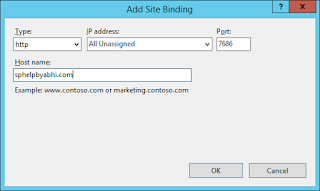
Here select the type as http that you provided while created the site collection, Define the port on which you want to host the site, define the host name as your site collection URL that is sphelpblog.com in my scenario. I am giving port 7686 as this is my web application port.
Now it will be added in bindings as in following screen.
Now Close this wizard
Now go to this location on your server - C:\Windows\System32\drivers\etc
And open host file in notepad.
Add an entry in this file for the new site like IP and hostname
127.0.0.1 “host that we provided in IIS in my scenario it is sphelpbyabhi.com”
Save this file. And restart your machine now this site can be used by your machine
When you open this site in IE you have to add it in your trusted site.

SharePoint Site asking password again and again

Hi All,

Today I am going talk about a very wired behavior of SharePoint.

Issue-
When you are opening a SharePoint site in  Internet Explorer it is asking for user credentials again and again and mostly it is asking for password 3 times and then shows a blank screen. This issue is coming for all the users even also for Site Collection Admin or Farm Administrators. 

Here i will like to mention that i was using a Hosted site collection.

Some trouble shooting i did in my case -

  1. I tried to open this site in Mozila Firefox and Google Chrome and found that site is working fine in both. Sharepoint is simply asking for a user name and password and allowing me to access the site. The difference I noticed here is that, When I am trying to access SharePoint in IE and getting credential prompt at that time it is show that connecting to servername.domain.root.loc while logically it should show site url in that window (as it is doing in Mozila and Chrome). By this step I was sure that we are missing something and it is giving issue with Internet Explorer only.
  2. So I visited different blogs, most of them suggest to add the site in trusted sites, or Local Intranet sites. also suggesting to bypass proxy if we are using but in my case we were not using any proxy. I tried all these stuff but no result. Even I tried to enable Internet Explorer for logging in to site with System credentials but it also did not helped me.
After doing all the above stuff i was again on same page that my site is not opening in IE or also in SharePoint designer.

Resolution -
After doing a lot of research work, I was sure that the issue is coming due to some authentication configuration.
So below are the steps how i solved the issue-
  1. I go to IIS Manager in the wfe servers of SharePoint.
  2. Expend the sites
  3. Selected the Defective site.
  4. Double clicked on Authentication. and click on "Windows Authentication".
  5. Select Provided in the left hand side tool box.
  6. Here you will see two providers "Negotiate" and "NTLM". Here leave NTLM and remove the other one.
  7. Click on "OK" and restart the IIS services.

Now open your site in IE or SharePoint designer and it should work.

Object reference not set to an instance of an object While Creating Site collection

Hi All,

Once I was creating a Site collection and got a strange error message that is "Object reference not set to an instance of an object". While every this was working in our environment but I was continuously getting this error on our Preprod environment. When I did further research and Check ULS Logs, I found following error,
Failed to provision site [project web access instance name] with error: System.NullReferenceException: Object reference not set to an instance of an object. at Microsoft.SharePoint.Administration.SPContentDatabaseCollection.FindBestContentDatabaseForSiteCreation(IEnumerable`1 contentDatabases, Guid siteIdToAvoid, Guid webIdToAvoid, SPContentDatabase database, SPContentDatabase databaseTheSiteWillBeDeletedFrom)

This error can be occur while creating site collection, site, Site backup or restore, or an particular site.

To solve these errors we performed the following steps:
1. Run below powershell command to get GUID of web application.
get-spwebapplication | ? {$_.displayname -eq ” You’re Web Application Name”} | fl
2. Run this SQL query against configuration database.
select ID, Name, CAST (properties as xml) from Objects where ID = ‘Webapplication ID’

And find in the xml which database has a fld of null.
  1. The results returned from step 2 will have 1 column with the properties as xml. Click on the results and it should open a new window in SQL Mgmt studio with xml output.
2.      Search for the word "m_Databases" in the xml output.
  1. Carefully read through the tag that stores the above searched word. You should be able to see fld tags. Find out a tag which has fld tag with value null. This is the orphan database. Its GUID is the xml line above where you found null.
  2. Cross verify all databases currently associated with the web application and make sure this database is not getting used. And check also again in SharePoint PowerShell if it is not listed!
Get-SPWebApplication | %{Write-Output “`n- $($_.url)”; foreach($cd in $_.contentdatabases){Write-Output $cd.name $cd.id “” }}
3.      Run below powershell script,
$webapp=get-spwebapplication "http://site.com"
$webapp.contentdatabases.delete(‘ID-of-bad-content-db’)

This script will give some error message but the null entry will be gone. And you will be able to perform your task.

Wednesday, 16 November 2016

View Style in SharePoint List/Library

This page is under construction...

Below are the Style id of available Styles in SharePoint that can be applied on the view.

Style Id Style
0 Basic Table
6 Picture Library Details
7 No name
8 No name
9 No name
12 Boxed, no labels
13 Boxed
14 Document Details
15 Newsletter
16 Newsletter, no lines
17 Shaded
18 Issues Boxed
19 Issues Boxed, no labels
20 Preview Pane

Please note - There is no ID defined for Default style of the view. This can be changed using View settings in Sharepoint list or by modifying schema xml of the view. There is not Style tag for default style in schema xml of the view. 

You can use following script for set the Style of a view to default.
http://funwithpowershellbyabhi.blogspot.in/2016/11/changing-style-in-view-of-listlibrary.html 

Sunday, 23 October 2016

SharePoint Permission Management

Hi All,
In today's blog post I will define the permission management in SharePoint. Most of us knows very well about the permissions on Site/Sub sites/List/Library/Items but there is a lot of confusion in permissions managed on a Farm level or from Central Administration level. Here today I am trying to define these permissions.

Farm level Permissions

Farm Account
Farm Account is the user who have installed SharePoint in a environment. Basically this account is supposed to be a Service account (it is expected that password of this service account  will never be changed)
For Installing SharePoint, user must be in Local Server Administrator group. This user should have 'Securityadmin' and 'DBCreator' permissions on SQL server.
When SharePoint has been configured this user will automatically get DBOwner access on the databases. That is required for performing any operation in SharePoint using Powershell.

Farm Administrators
Farm Administrators have complete access on SharePoint sites/products/feautres same as Farm Account but they can use GUI on for performing their tasks but they can not do any query with database. They can’t do anything with PowerShell.
If they need to use power shell or access database they have to get DBOwner rights on all SharePoint Database. 
This access can be granted using 
Add-SPshelladmin -username domain\user
To use powershell (Permission will be granted on Config and CA Content DB)
Add-SPshelladmin –username domain\user -database Databasename
To use powershell for a particular Web application

Service Account
You can use multiple service accounts. The different between a normal account and a service account is that it is expected that the password of service accounts will not be changed in future. Basically these accounts are used for configuring different type of services and service applications in SharePoint.
These accounts should not be used for accessing SharePoint sites and by any normal users. Only power user should have access to these accounts.


Web Application Level Permissions

Anonymous Access
If you enabled this access, anyone in the network can access your SharePoint site with logging in to it (like you access google without any login).
This is required to be enabled on Central Administration Level for a particular web application and once enabled Site collection admins can manage its permissions on the site level.

Permission Policy
There are four permission policy by default.
Full Control – Have full access on complete web application
Full Read - Have full read on complete web application 
Deny Write – Can’t write or modify anything in complete web application
Deny All – Can’t access complete web application
You can define the custom permission of your choice and choose what are the permissions for the user on web app. This policy is defined on the bases of Zones of the web application.

User Policy
A Farm admin can define that, what a user can do with in the web application. Any permission policy can be applied for a user that will impact on complete web application.
These settings can’t be removed by any site collection admin or any user who have full control. If you have selected Deny All for a particular user then that user cannot access any site collection, Site, Subsite, List, Library, Document even if he/she have full control on the site or he/she is a Site collection admin.

User Permissions
Farm admin can choose which permissions will be available for the users inside a site collection. If you removed Manage Permissions from this location any user having full control on the site will not be able to change the permissions of the site. Only Site Collection Admin will be able to do this.

Site Collection Level Permissions
Site Collection Administrator
A Site Collection Administrator has full control on the Site Collection and its sub sites.
But there are two type of Site Collection Administrators
     1. Managed by Central Administration
·         Maximum 2 users can have this access. Groups are not allowed.
·         When we create a Site collection we have to provide 2 Site collection Administrator (Primary and Secondary). Primary is mandatory.
·         Have full access on complete site collection and its sub sites
·         Receives Alerts related to issues with Quota Limit and Site Access requests and other issues that are coming due to settings in the site.
·         Can’t be managed by Site Settings. Only Farm admins can remove these users.

     2. Managed by the site it self
·         Any number of users or groups can have these permissions.
·         Managed by Site Settings. Any user having Site collection admin right can remove these users.
·         Does not get any alert of any issue in the site.


Scope of Users and Groups
·         SharePoint Group – Site Collection
·         Permission Level – Site Collection
·         Permissions - Site/Subsite/List/Library/Items
·         Users – Active directory
·         Domain Group – Active Directory (Domain groups can’t be granted any permission on SharePoint.
·         Security Group – Active Directory (Domain groups must be converted to security groups if you need to give permission to AD groups) 


Friday, 29 July 2016

SharePoint Architecture

Today I am defining the normal Architecture of SharePoint -

Architecture of SharePoint –

1-Tier: all above layers can only run in one computer. In order to achieve 1-Tier, we need to use the embedded database system, which cannot run in an individual process. Otherwise, there will be at least 2-Tier because non-embedded databases usually can run in an individual computer (tier).   

2-Tier: Either presentation layer and application layer can only run in one computer, or application layer and data layer can only run in one computer. The whole application cannot run in more than 2 computers. 

3-Tier: the simplest case of N-Tier architecture; all above three layers are able to run in three separate computers. Practically, these three layers can also be deployed in one computer (3-Tier architecture, but deployed as 1-Tier). 

N-Tier: 3 or more tiers architecture. Diagram 2 below depicts a typical N-Tier architecture. Some layers in 3-Tier can be broken further into more layers. These broken layers may be able to run in more tiers. For example, application layer can be broken into business layer, persistence layer or more. Presentation layer can be broken into client layer and client presenter layer. In diagram 2, in order to claim a complete N-Tier architecture, client presenter layer, business layer and data layer should be able to run in three separate computers (tiers). Practically, all these layers can also be deployed in one computer (tier). 
Usage of Different Tier Architectures of SharePoint -

1-Tier: Normally this architecture is used in development environment.  This is a standalone SharePoint installation that contains all the services, web applications, SQL server, Central Administration in one machine. We can also install a complete farm SharePoint but we will not add any other server in this farm otherwise it will become 2 or more tier architecture.
2-Tier: Normally this architecture is used in development/preprod environment. There are two machine that are sharing the load from SharePoint. This can be used where we have SQL server installed on different machine. In this mode we can use both standalone installation or farm installation but if we install a farm then we will not add any other server in this farm otherwise it will become 3 or more tier architecture.
 
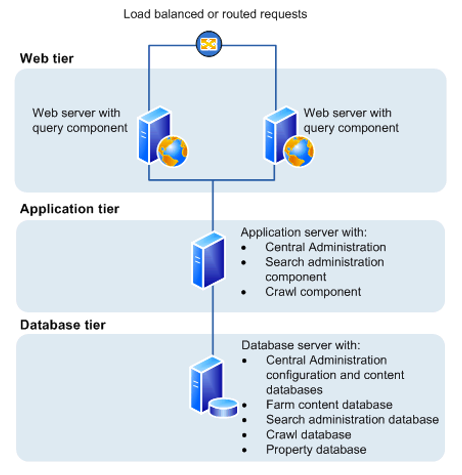
3-Tier/N-Tier: This is a complete SharePoint farm installation, where we a have a Database server, Application server and Web Front End (WFE) servers. This architecture is used in Preprod or Prod Environment.

In a typical 3-tier architecture there is -
 
One Database server – This server contains the SQL server database, that hosts the SharePoint and its databases. 
One Application server – Normally this server hosts Central Administration, and SharePoint services and service applications. 
Two Web Front End servers – This server hosts all web custom applications in the SharePoint farm, most of custom SharePoint features, wsp solutions are installed on these servers only. 


A WFE can be identified by "Microsoft SharePoint Foundation Web Application" service. This service is not started on a application server. 

SharePoint Usage

Today I am Providing some basic and useful information about SharePoint -

What is SharePoint?
SharePoint is web based portal that uses IIS web sites to share different type of data and information securely. This is a very easy tool that can be used by any size of organizations may be small, Medium or large. SharePoint is available onprime (local Machine) or online. SharePoint can be installed on a Windows Server Machine and can be accessed from anywhere in the network. Even without knowing the physical location of the files. SharePoint keeps its data on SQL server. Basically SharePoint is data and information Sharing Software.

As per Microsoft –

SharePoint is a collaboration environment that organizations of all sizes can use to increase the efficiency of business processes.
SharePoint sites provide secure environments that administrators can configure to provide personalized access to documents and other information. Search features enable users to find content efficiently regardless of the physical location of data.

Usage of SharePoint –
SharePoint is very useful in different scenario. Here I am defining some of them.
Documents – User can store documents in SharePoint and share it with other users and limits then from performing the operations on the documents. SharePoint Usages Permissions that can be given of item levels that is different items can have different permissions. And the allowed users can perform task on the SharePoint.
Calendars – User can store calendars events and create your schedule and store in SharePoint and share it with other users and limits then from performing the operations on the events. SharePoint Usages Permissions that can be given of item levels that is different items can have different permissions. And the allowed users can perform task on the SharePoint.
Surveys – SharePoint can be used to do surveys in your local environments and online environments as well.
Task and Projects – You can manage your tasks and projects in SharePoint and assign them to related persons as well.
Collaboration – SharePoint’s Newfeed, user profile, collaboration features enable user to share their thoughts, like and comments on the each other posts, Share their Knowledge.
SharePoint is capable to send email alerts, automation tasks, data sharing in a secure environment.